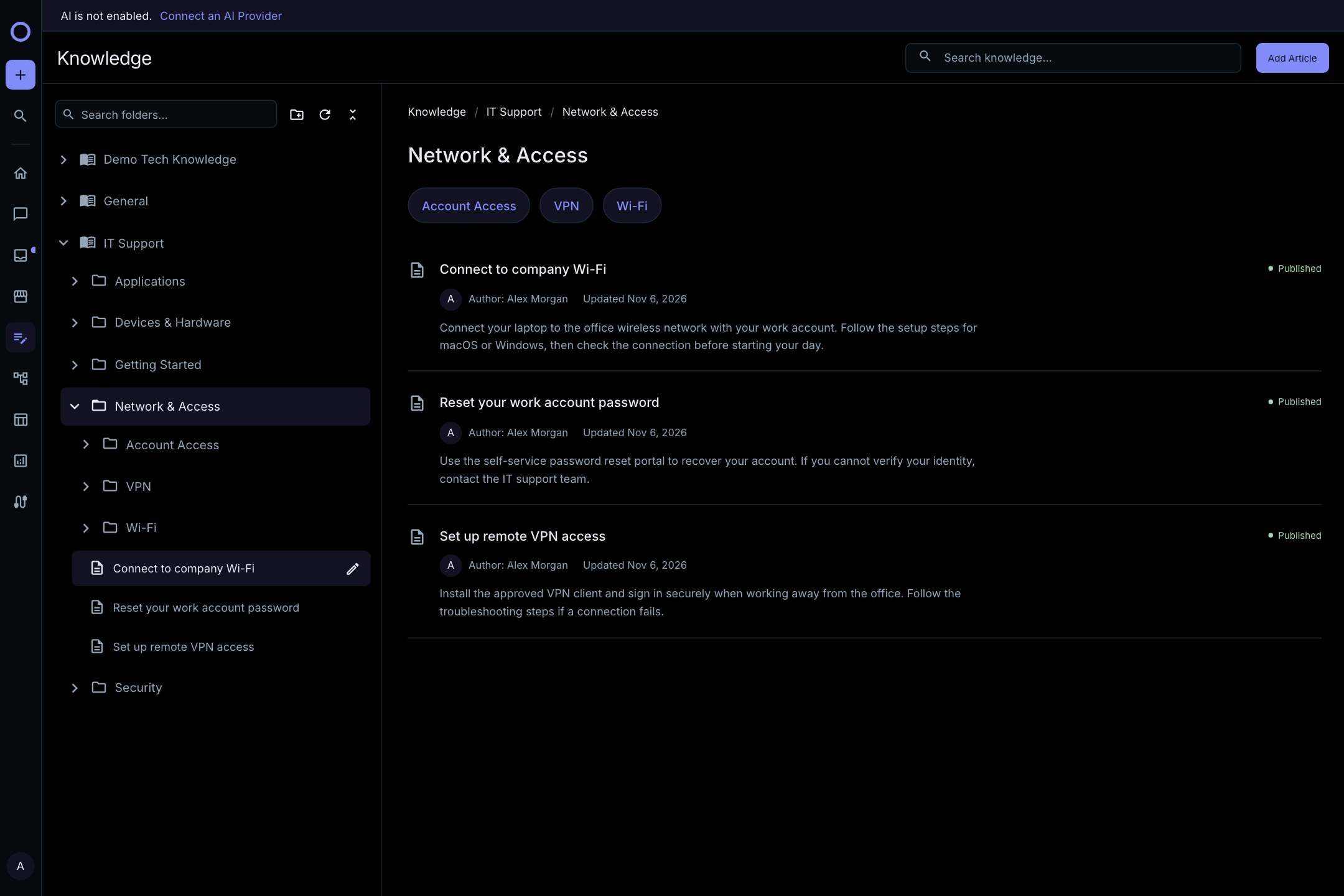
Knowledge
Organize knowledge bases, topics, and articles, review proposed changes, publish guidance, and control who can read it.
Knowledge bases collect articles for your team. Topics and subtopics make them easier to browse. Employees and Zuno use published articles they are permitted to read.
Organize bases and topics
- Open Knowledge. Select a folder or article in the left explorer.
- As an Admin, select Add Knowledge Base beside the explorer search.
- Hover or keyboard-focus a folder to reveal Add Topic, Add Article, and its edit pencil. Actions stay visible on touch devices.
- Select the pencil to edit the base or topic in the right-side panel. Save changes when ready.
Topics support up to three levels. Top-level topics appear as compact cards; subtopics appear as pills. Empty folders reveal an outlined Add article action on hover or focus.
Search the explorer to find permitted folders and articles. Drag its divider to resize it, or focus the divider and use the arrow keys. On phones, use Browse knowledge folders to switch panes.
Draft an article through conversation
As an Admin, select Add Article in the intended folder. Its base and topic are filled in for you. Ask the Admin agent for a draft, for example:
Write a guide for connecting to company Wi-Fi on Mac and Windows. Explain how to sign in and where to ask for help.
New articles save or publish directly without a review step. The Preview tab shows the current content for new articles, or the saved article when editing without proposed changes. For existing articles, review proposed changes in the sticky approval bar, request changes if needed, and select Approve Changes before Save or Publish becomes available. Editing approved fields requires another review. The top Preview button only opens the current proposal or saved article in a standalone read-only page; it does not create a proposal. You can also edit the title and body manually. Use History for past authoring conversations and Attachments for related files.
Publish and maintain content
Keep unfinished articles in Draft. Publish reviewed guidance when it is ready for readers. Saving a draft alone does not publish it.
Select an article's hover pencil or Edit Article beside its breadcrumbs to update it. Check the reader preview and publication state after saving.
To remove a base or topic, open its edit panel and confirm deletion. Move its articles and subtopics and remove connected sources first. The default General base can be edited but cannot be deleted or restricted to selected members.
Find answers in chat
Ask Zuno a question such as “How do I connect to company Wi-Fi?” It can reference permitted published articles and link to them. Live conversation requires an enabled AI provider in Settings.
Agents and employees can read permitted knowledge; Admins manage content. Read Only members can inspect permitted content without editing it.
Control access
Admins set access on bases, topics, and articles. Their restrictions apply together: publishing an article does not override them. General is available to all workspace members, while its articles and topics can still have restrictions.
Article attachments follow the article's access rules. Files uploaded privately in a support chat do not become shared knowledge.
If an article is missing
Check that it is published, belongs to the intended base and topic, and is available to the person asking. Use a specific title and clear instructions. For technical retrieval and permission details, see Security & Sandbox.