Requests & Tasks
Submit requests, manage fulfillment tasks and due dates, and collaborate with comments, private work notes, and mention notifications.
Requests collect an employee's submitted answers, approvals, and support work. Tasks assign individual pieces of that work to a group or person.
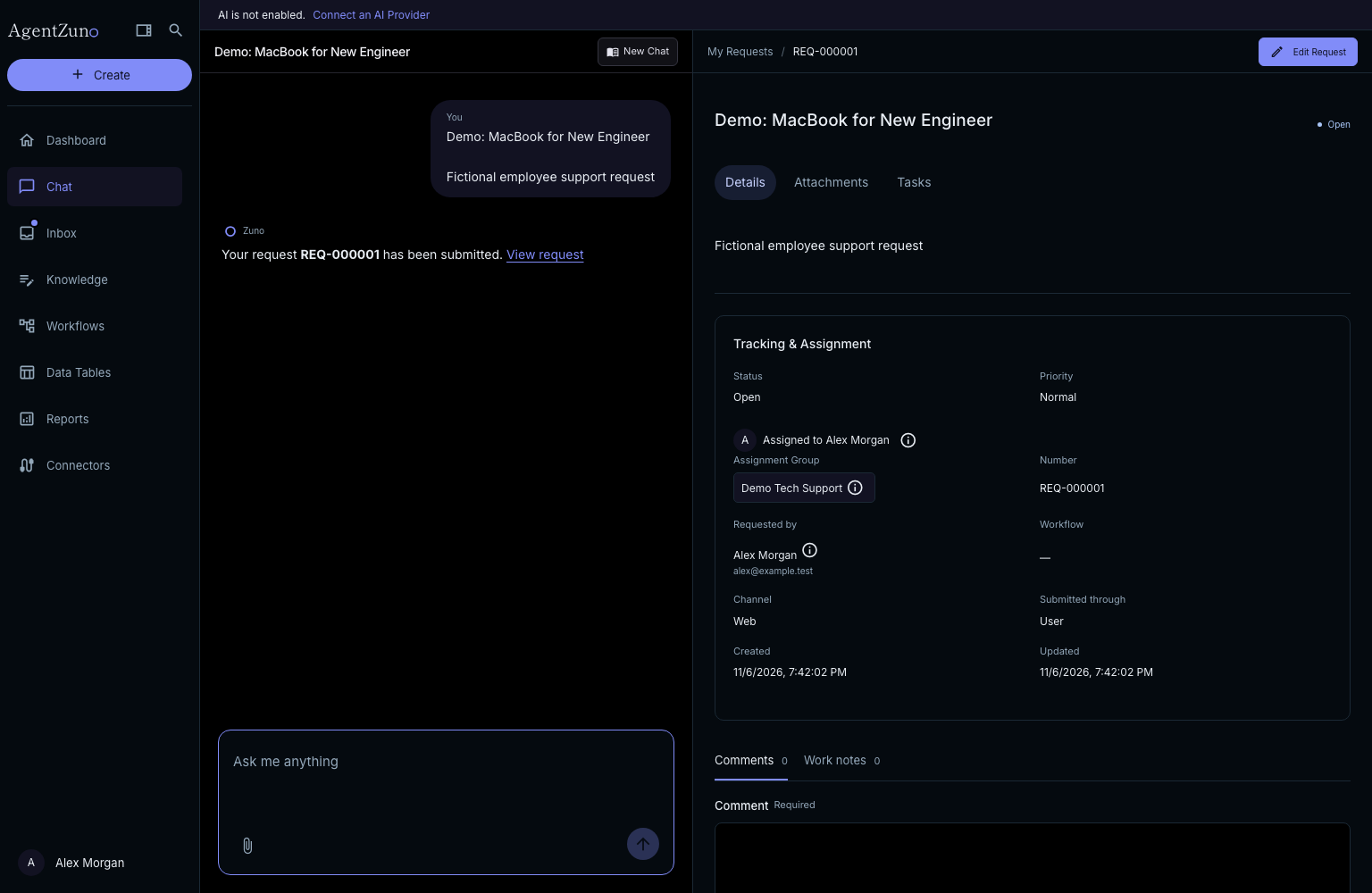
Submit and follow a request
- Open Chat and describe what you need.
- Review and complete the offered form, then submit it once. Opening a form alone does not create a request.
- Use the request panel beside the conversation to review answers, status, attachments, and tasks.
- Return through Dashboard → My Requests.
Zuno replies open at the start of the response. Scroll down to complete long forms and reach Submit. Reopening an unsubmitted form loads its current published version; a changed or unavailable workflow cannot accept a stale submission.
The request panel’s Approvals tab lists workflow and support approvals, their states, decision dates, comments, and recorded skip or assignment failures. Being the requester never bypasses approval. A different active member with approval permission must be available.
If a chat has several requests, switch between them with the selector above the request panel. AI chat needs an enabled provider configured by an Admin.
Create and work on a task
Admins and authorized Agents can add a task from a request's Tasks tab or Data Tables → Tasks. Choose its originating request, enter a title and details, and set an optional due date. Workflows can also create tasks after submission or approval.
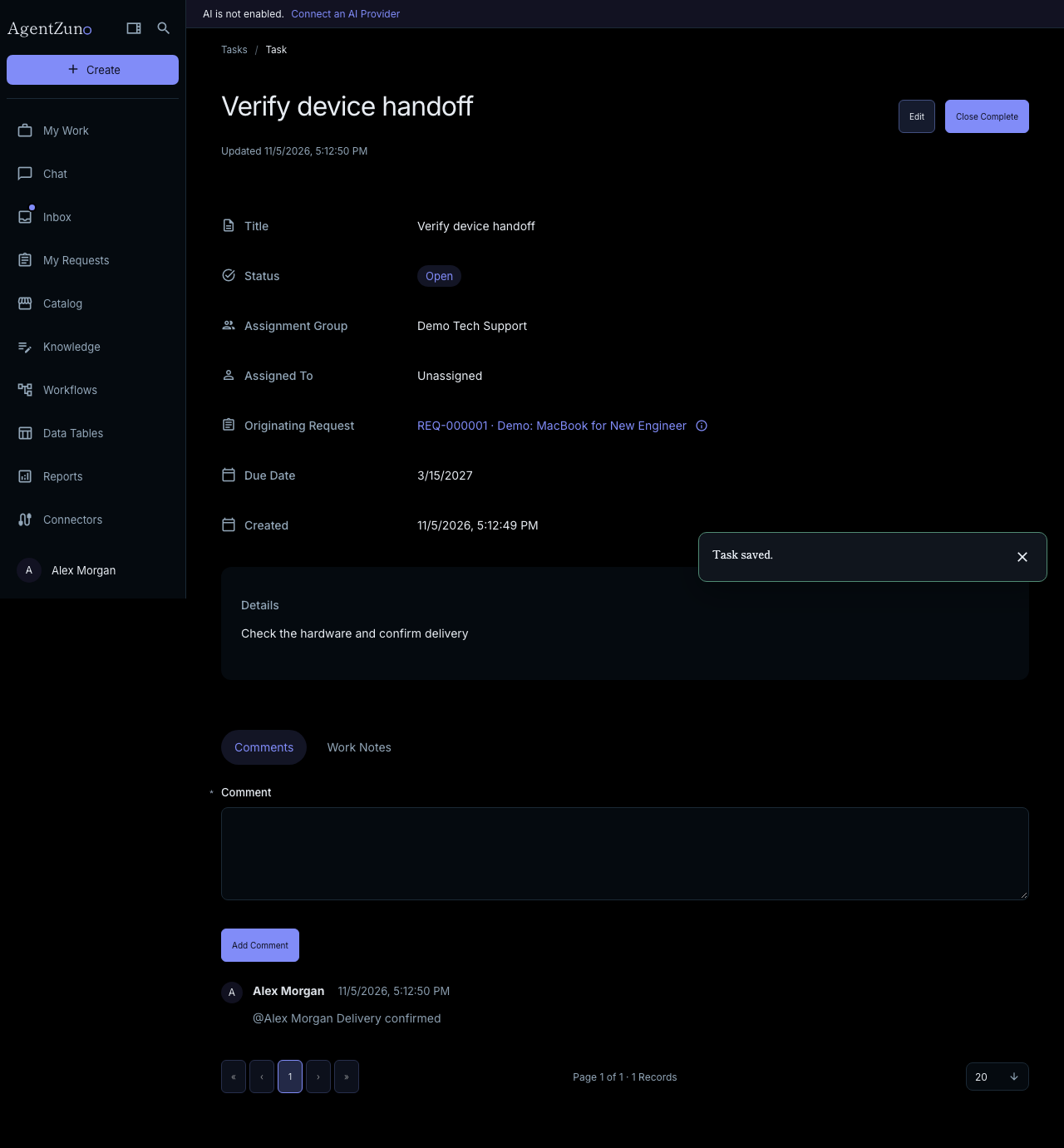
Open a task and choose Edit, update its details, then Save. Use Close Complete when finished. Reopen a resolved parent request before changing its tasks. Due dates are calendar days and do not shift with the viewer's time zone.
Assigned people and group members find permitted tasks in Inbox. Users can comment on accessible tasks but cannot create or close fulfillment tasks. Read Only members cannot make changes.
Tasks use the same resizable workbench as Data Records: title and details on the left; Properties, Comments, Work Notes, and Related Records on the right. Save and Cancel replace Edit in the top action bar.
Comments, work notes, and mentions
- Comments share updates with people who can read the record.
- Work Notes hold internal context for authorized staff; employees cannot read them.
- Type @ and select a person to notify them when you save the message. Suggestions include only people eligible to read that content.
Mentions appear in Inbox. Configured workspace email can also send a record link without the private message body. A mention does not grant access.
Approve or reject work
Open your assigned approval in Inbox. Review the request and choose Approve or Reject. Add a rejection reason when required, then confirm the decision.
You need approval permission and a current assignment. You cannot approve your own workflow request.
If something is missing
| Problem | Check |
|---|---|
| No request form appears | Ask an Admin whether the workflow is published and available to you. Describe the request clearly. |
| Inbox is empty | Check your assignments and group membership. Inbox is not the list of all your submitted requests. |
| A task cannot be changed | Check your record access and whether its parent request is resolved. |
| A mention is unavailable | The person must be active and permitted to read the record or internal note. |
See Roles & Features for role access and Workflows for creation, publication, and deletion.