Workflows
Build AgentZuno workflows through conversation or TypeScript, collect request details, route work, and review approvals before publishing.
Workflows turn employee requests into forms, approvals, and actions. Admins build and publish them inside AgentZuno; no SDK installation is needed.
Build a workflow through conversation
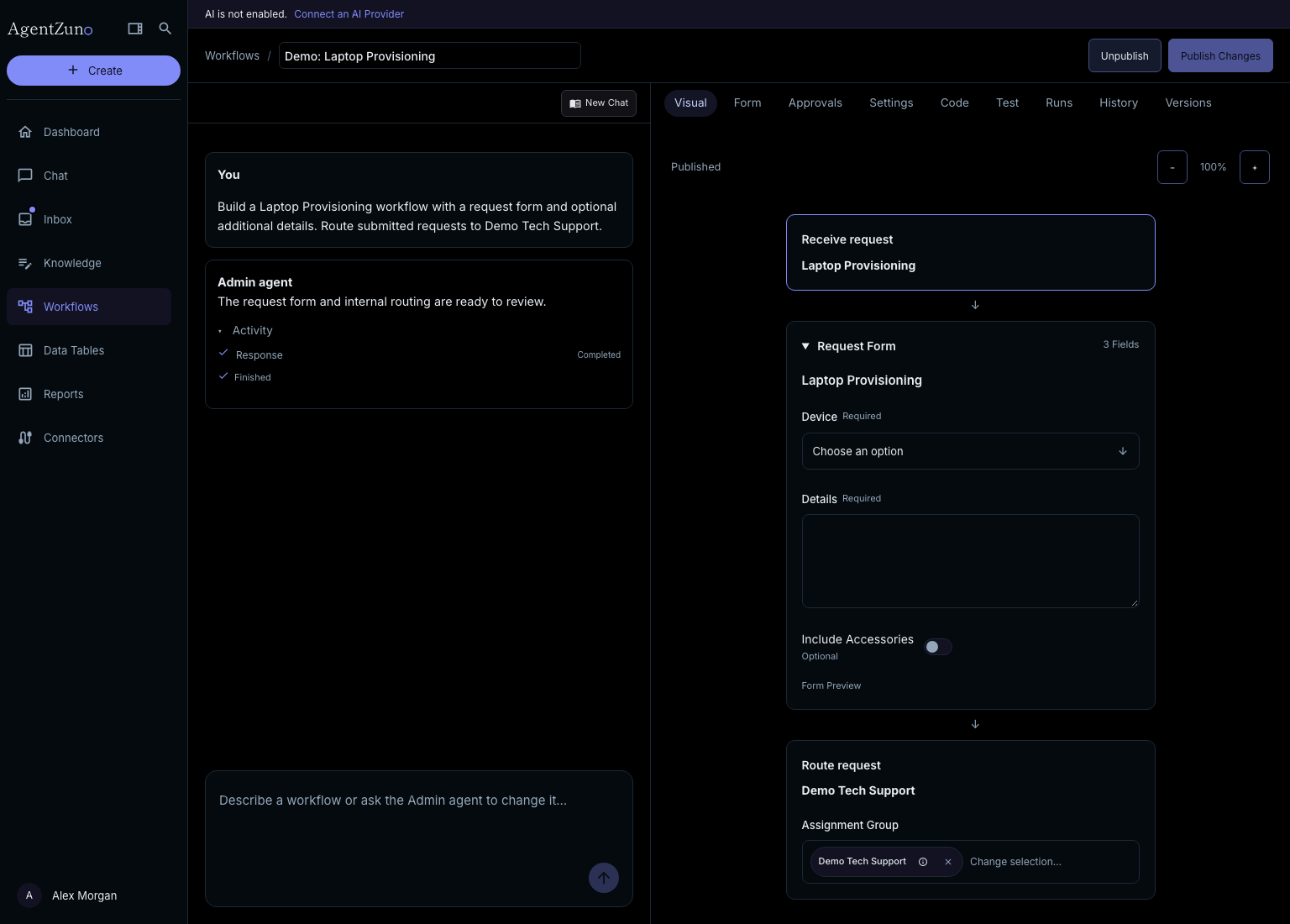
Open Workflows → New workflow.
Describe the request and what should happen. For example:
Create a laptop request with Mac or Windows choices, manager approval, and a fulfillment task for Desktop Support.
Review the proposed workflow and refine it through conversation. Ask the Admin agent to create a missing group explicitly, or create it in Users & Groups first.
A workflow can also register information in a Data Table without creating a fulfillment task. For example, collect an AI tool's name and description, create a table record, and link it to the submitted request.
Review the draft
| Tab | Use it to |
|---|---|
| Visual | Review the declared process and routing. |
| Form | Edit the questions and reference fields. |
| Approvals | Choose a person, group, or requester’s manager and any conditions. |
| Settings | Review access, descriptions, execution limits, and the Danger Zone. |
| Code | Edit the executable TypeScript when needed. |
| Test | Simulate actions with sample answers. |
| Runs | Inspect actual executions. |
| History / Versions | Revisit authoring conversations or saved workflow versions. |
The first complete generated flow saves as a draft. While the Admin agent updates the flow, the Visual tab keeps the current workflow visible and replaces it when the update is ready. Draft changes save automatically, or you can select Save Draft in the top bar. Neither changes the published workflow. New conditional routing rules start without an assignment group; select a group before the draft can save. Background save issues appear beside the save status, while manual saves show a success or error notification.
Test and publish
Use Test to check the workflow with sample answers. Simulations do not modify requests or send external messages; simulated approvals are approved.
Select Publish when the draft is ready. Submit a permitted request through Chat and inspect Runs to check the real behavior. Only explicit form submission starts a live run.
Publish Changes becomes available after you change the published configuration. Unpublish stops new offers and prevents pending execution from continuing at its next access check.
Employee requests
Employees describe what they need in Chat. The support agent selects from workflows available to that person and asks for clarification when needed. Trigger phrases are not required.
Offering a form is not a submission. The employee reviews its answers and submits it before actions run.
Delete a workflow
Open Settings → Danger Zone. Preserve existing requests and Preserve workflow history both start on. Review these choices: turning them off deletes the associated requests/tasks/attachments and runs/saved versions.
Select Delete Workflow and enter its exact saved name. Governance audits and private chat transcripts remain. Running or uncertain actions block deletion. Retained requests leave pending workflow approval and return to open; pending runs stop.
If something is missing
Check publication, permissions, assignment groups, and the person’s department. Review failed runs for action or connection errors. A draft or successful simulation is not proof of a completed live request.
Use workflow code
The Code tab works without a separate install. Developers writing workflows in VS Code or another local project can use the optional Workflow SDK. See the code reference for available types and Security & Sandbox for runtime limits.